Web Design and Authoring: Session three
CSS selectors
The CSS selector selects which parts of the document the style rule will be applied to.
There are four types of CSS selector which you will probably use at this stage:
- tag
- class
- id
- compound
We shall also introduce the <div> and <span> tags which we use with CSS selectors.
Tag selector
Any HTML tag can be redefined using a tag selector.
A tag selector will apply the styles you specify to every instance of that particular tag (apart from instances of tags which have styles applied by class, id or compound selectors).
Once the tag selector and style rules are specified in the stylesheet, you don't need to do anything to the HTML file in order for the styles to be applied.
Class selector
A class selector can be applied to any HTML element, and as many times per page as you wish.
For example, if I want to set up three different style rules for colour and alignment, I would write the following style rules:
 .blue {	color:#2D73B9;
				text-align: right;
}
.green {color: #00A54E;
				text-align: center;
}
.red {	color: #E3372E;
				text-align: left;
}
Note that the class selector has a full stop (.) preceding the class name.
You can name the class anything you like, but a meaning associated with what the class does is useful.
Once the style rules are added to the stylesheet, I can apply them to any HTML element I choose, like so:
<!DOCTYPE HTML public "-//W3C//DTD HTML 4.01 Transitional//EN"
"http://www.w3.org/TR/HTML4/loose.dtd">
<html>
<head>
<title>class selectors</title>
<meta http-equiv="content-type" content="text/HTML; charset=UTF-8">
<link href="css/styles.css" rel="stylesheet" type="text/css">
</head>
<body>
<h1 class="green">Applying classes to HTML</h1>
<p class="blue">This is a paragraph of text coloured blue and aligned right. This is a paragraph of text coloured blue and aligned right. This is a paragraph of text coloured blue and aligned right. </p>
<h2 class="red">A red heading!</h2>
<p class="green">Some green text which is aligned centre.</p>
<h2 class="blue">A blue heading</h2>
<p class="red"> A paragraph of red text which is aligned left. A paragraph of red text which is aligned left. A paragraph of red text which is aligned left. A paragraph of red text which is aligned left.</p>
<hr class="green">
</body>
</html>
View the page which has these styles applied (with some additional Lorem ipsum text).
id selector
An id selector can be applied to any HTML element, but it can only be applied once per page (unlike a class selector).
id selectors are often applied to the <div> tag, particularly when building CSS page layouts (see below for an explanation of the <div> tag).
The following id selectors are set up in preparation for creating a CSS page layout. Note that the id name is preceded by a # sign.
body {text-align: center;
}
#wrapper {width: 960px;
					margin: 0 auto;
					text-align: left;
}
#header {	color: #FFF;
					background-color:#2D73B9;
}
#nav {color: #FFF;
			background-color:#00A54E;
			width: 300px;
			float:left;
}
#content {color: #FFF;
			background-color:#E3372E;
			margin-left:320px;
}
View the page which has these styles applied (we shall create a similar page in the next session).
In the HTML code for this page we can see how the id selectors are applied using <div> tags:
<!DOCTYPE HTML public "-//W3C//DTD HTML 4.01 Transitional//EN"
"http://www.w3.org/TR/HTML4/loose.dtd">
<html>
<head>
<title>id selectors </title>
<meta http-equiv="content-type" content="text/HTML; charset=UTF-8">
<link href="css/styles.css" rel="stylesheet" type="text/css">
</head>
<body>
<div id="wrapper">
<div id="header">
<h1>Using id selectors to create a CSS page layout </h1>
</div><!--closes header div-->
<div id="nav">This is the div #nav</div><!--closes nav div-->
<div id="content">
<p>This is the div #content</p>
<p>We have now done most of the work we need to create a CSS page layout!</p>
</div><!--closes content div-->
<hr class="green">
Back to <a href="../selectors.html#back2">coursenotes</a>
</div><!--closes wrapper div-->
</body>
</html>
Div and span tags
The <div> (for division) tag enables us to divide the content in a page into logical divisions (for example, banner, sidebar, main content, footer) which can enclose any number of other HTML elements, such as headings, paragraphs, lists, tables. We can then apply style rules to the <div> tag which will style all of the elements it encloses.
We use the CSS properties of width and float applied to the <div> tag to begin to create CSS page layouts (as you can see in the example above).
The <span> tag is used to apply styles to inline elements, such as snippets of text. For example, these sentences appear thus in the HTML code:
<p>The <span class="code"><span></span> tag is used to apply styles to inline elements, such as snippets of text. For example, these sentences appear thus in the HTML code:</p>
Compound selectors
Compound selectors enable us to apply different styles to the same elements, applied depending upon each element's position on the page.
For example, in our page layout above, we used an <h2> tag in both the division with the id nav <div id="nav"> and in the division with the id content <div id="content">, but they look different as they are styled differently. To set this up, we add the following style rules to our existing stylesheet:
#nav h2 {font-family: "Lucida Bright", "Palatino Linotype", Georgia, serif;
					font-size: 125%;
					color: #FC0;
}
#content h2  {font-size: 200%;
}
Compound selectors are often used to style <a> tags differently in navigation bars to the way they are styled in the main body of the text.
Finally ...
We've covered a lot of ground on this page. You may need to read through it a couple of times, and try out the examples for yourself, before it drops into place.
Remember, you can view any .css file applied to a web page using the Firefox Web Developer toolbar:
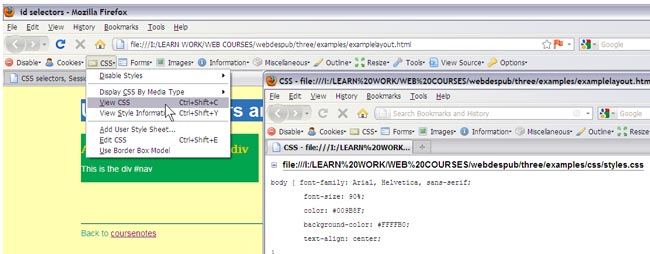
If you don't yet have the Firefox Web Developer Toolbar, simply click on the link here to download and install the Web Developer toolbar by chrispederick.